





External Share vs Confluence Guests vs Public Links: How to Share Confluence Content Externally

External collaboration in Confluence is no longer a single-choice decision.
Today, teams can invite external people as Confluence Guests, share individual content with Public Links, or use External Share for Confluence to create secure, controlled links for clients, vendors, partners, auditors, and stakeholders. All three options can help you share Confluence content outside your organization. But they solve different problems, so the right choice depends on your goals.
The short version:
Use Confluence Guests when an external collaborator needs to work within a single Confluence space.
Use Public Links when you want to make a specific page, live doc, or whiteboard publicly viewable and unrestricted to anyone with the link.
Use External Share for Confluence to securely share selected Confluence content without adding external users to your Atlassian organization.
Let’s look at the differences.
The main difference: access inside Confluence vs sharing outside Confluence
The most important distinction is not simply “native feature vs Marketplace app”.
The real difference is this: Confluence Guests allow external users to access your Confluence workspace. External Share lets you share Confluence content without bringing external users into your workspace. That difference matters for security, administration, user experience, permissions, and long-term maintenance.
A Guest is still a user in your Atlassian organization. They need to be invited, granted Confluence access as a Guest, and assigned to a space. Atlassian describes Guests as single-space guests, free for up to five guests per paid user, with total paid and guest users still limited by the current Confluence site user limit.
External Share for Confluence works differently. Instead of adding someone to your Confluence site, you create a secure external link to the content you want to share. External users can access that shared content without workspace access, while admins control the link’s access, visibility, interactions, passwords, domains, permissions, and expiration dates.
What are Confluence Guests?
Confluence Guests are Atlassian’s built-in way to invite external people into Confluence Cloud. A Guest can be a client, vendor, freelancer, contractor, consultant, or another external collaborator. To qualify as a Guest, the user must be outside the organization, and their email domain must not match the organization’s associated domains - current or former paid users cannot be converted into Guests.
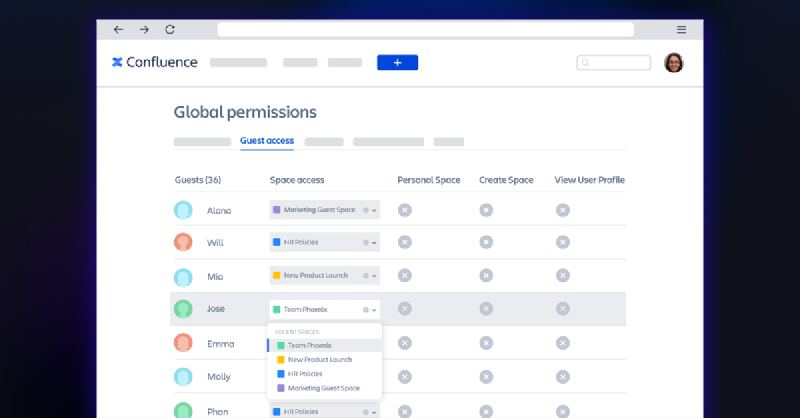
Guests are useful when someone outside your company needs to collaborate in Confluence over a longer period.
For example, you may want to invite:
an agency working inside a marketing project space,
a consultant contributing to a process documentation space,
a contractor helping maintain technical documentation,
a client who needs ongoing access to a shared project workspace.
Guests can only access one assigned space at a time. However, within that assigned space, they can access all content by default unless page-level restrictions are applied. If admins do not want to share the entire content of an assigned space, they should either use page restrictions or create a dedicated space to invite their Guests. By default, Guests receive basic collaboration permissions, including the ability to view pages, add pages, comment, and add attachments. Space admins can grant additional permissions, but Guests cannot be granted Space admin, Export space, or Restrictions permissions. This makes Guests a good option for deeper collaboration, but not always the simplest option for selective sharing.
What are Confluence Public Links?
Public Links are Atlassian’s native option for sharing individual Confluence content items with people outside your organization.
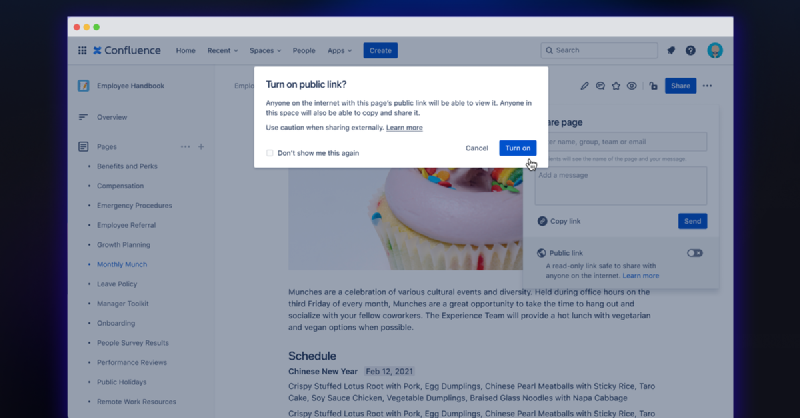
They are useful when content is meant to be broadly accessible, such as:
public FAQs,
release notes,
shareholder letters,
public-facing documentation,
open project updates,
simple read-only resources.
Public Links are available for Confluence pages, live docs, and whiteboards on paid Confluence plans; blogs, databases, and some other content types are not supported at the moment.
The important thing to understand is that Public Links are public by design. Anyone with the link can view the content online. Public Links also ignore Confluence view restrictions on the parent item, space, or site. Public Links are therefore convenient, but they are not the same as controlled external collaboration. They are a good fit when the content is safe to share with anyone who has the link. They are not ideal when you need more granular access control, branded sharing, external user permissions, passwords, expiration dates, attachment controls, or visibility into external activity.
What is External Share for Confluence?
External Share for Confluence is a Marketplace app that lets teams share Confluence content externally without giving people access to the Confluence workspace. Instead of inviting external users into your Atlassian organization, you create a secure link to the Confluence content you want to share. You can then decide what external users can see and do.
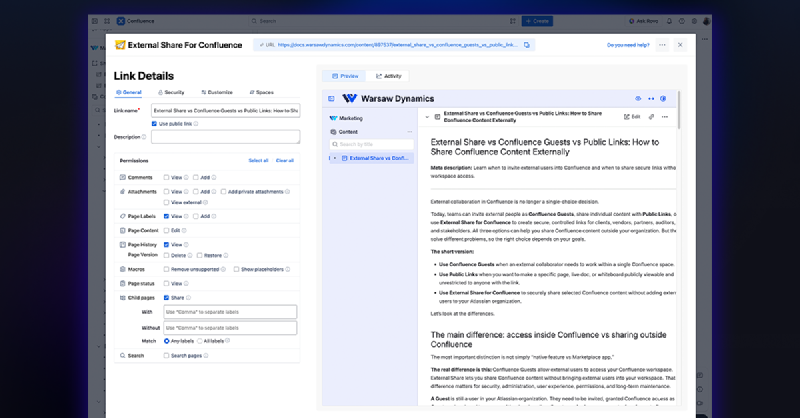
External Share is designed for teams that need more control over external collaboration, including:
secure link sharing,
password protection,
domain restrictions,
expiration dates,
view, comment, edit,
attachment sharing,
page customization,
custom domains,
activity tracking,
SSO and identity integrations,
permission-based access control.
The key value is simple: external users can access the content they need, while your internal Confluence workspace stays protected.
Comparison table
| Parameter | Confluence Guests | Confluence Public Links | External Share for Confluence |
|---|---|---|---|
| Best used for | Ongoing collaboration with named external users inside one dedicated Confluence space | Public or low-friction sharing of individual content that is safe for anyone with the link to view | Secure, controlled sharing of Confluence content with clients, vendors, partners, auditors, or stakeholders without workspace access |
| External user model | External person is invited into your Atlassian organization as a Guest | Anyone with the public link can access the public version of the content | External person receives a secure shared link |
| Atlassian account required | Yes | No | No |
| Workspace access | Yes, limited to one assigned Confluence space | No | No |
| Access to full space | Yes, Guests can access all content in their assigned space by default unless page restrictions are applied | No, only the individual content item shared by public link | Yes, if the whole space has been shared |
| Unlimited external user sharing | No, Guests are managed as external users and subject to Atlassian Guest limits | Yes, anyone with the link can view | Yes, designed for sharing with unlimited external clients, vendors, and partners |
| Scope of sharing | One assigned Confluence space per Guest | Individual page, live doc, or whiteboard | Page, page tree, space, attachments, or selected shared content |
| Temporary sharing | Possible, but requires Guest lifecycle management | Possible by turning the public link off | Yes, with expiration dates and share-level controls |
| Access shared content without login | No | Yes | Yes, unless login, selected-user access, or SSO is required |
| All Confluence users can share content externally | No, Guest invitation and assignment require admin involvement | Only if public links are enabled, and the user has the required page/space permissions | Can be allowed or restricted based on app configuration and admin governance |
| Display Jira work items on shared pages | Possible only if the Guest has the required Jira/Confluence access and permissions | Limited/not reliable for external viewers because public links show a safe public version and hide many dynamic elements | Stronger fit, especially when sharing Confluence pages that include supported Jira/macros/content elements |
| Custom page links for shared pages | No | No, uses Atlassian public link behavior | Yes, shared links can be customized/managed through External Share |
| Full Confluence macro support | Native Confluence experience, but only inside the assigned space and within the Guest’s permissions | Limited public rendering; public links hide macros and other content outside the shared item | Broad macro support, including most native and many third-party macros |
| Branding / custom domain | No | No | Yes, suitable for branded external documentation or knowledge-base experiences |
| Security model | Atlassian account-based access, managed through Guest access, space permissions, and restrictions | Public-link model: anyone with the link can view while the link is active | Secure link-sharing model with passwords, domains, permissions, expiration dates, selected users, and SSO/identity options |
| Admin involvement | High: Guests must be invited, assigned, permissioned, and removed when no longer needed | Medium: admins control whether public links are allowed and can manage active public links | Configurable: admins define governance, while permitted users can create and manage external shares |
| Collaboration parameters | View, add pages, comment, add attachments by default; additional permissions can be granted with limitations | Mostly view-only for pages and live docs; public whiteboards can allow editing | Configurable external actions such as view, comment, edit, download, and attachment access |
| Shared content audit log and dashboard | Covered by general Confluence user/admin visibility, but not a dedicated external-sharing dashboard | Admins can view/manage spaces and active public links, but there is no deep external-collaboration dashboard | Yes, External Share provides activity tracking and visibility over external shared content |
| Best summary | “Bring this external person into Confluence.” | “Make this content public to anyone with the link.” | “Share this Confluence content externally while keeping Confluence private.” |
When should you use Confluence Guest accounts, and when External Share for Confluence?
Confluence Guests are usually the better fit when an external person needs to behave like a real collaborator within a single Confluence space. Since guests are assigned to a single space, if the entire space is designed for that external collaboration, the Guest model is clean and logical. Some organizations prefer that every external collaborator be represented as a named user within the Atlassian organization. In that case, Guests can fit the governance model.
Where do Confluence guests become limiting?
If you only want to share one page, a small page tree, or a few selected resources, assigning
someone to a whole space can be too broad. You then need to manage page restrictions carefully or
create a dedicated space just for that external audience.
Guests are not just “a link” but real Confluence users. This means someone has to invite them, give
them app access, assign them to the right space, manage permissions, and remove them when
collaboration ends. For short-term collaboration or one-off sharing, this can be more of a process
than the task deserves.
An important limitation users should be aware of is the Guest qualification criteria. Guests cannot use an email domain that belongs to your organization, affiliates, subsidiaries, or related entities. In practice, this means that larger organizations that have separate Confluence sites for different business units, regional instances, or locked-down Confluence sites for Legal, IT, Security, or HR are automatically excluded from using this main feature. In such cases, a user from another department may appear to be an “external collaborator” from a workflow perspective, but Atlassian may still treat them as internal because they use the same company email domain.
That creates exactly the operational problem External Share for Confluence solves better.
External Share for Confluence is usually the better fit when you want controlled sharing without
workspace access. The app itself is built for selective sharing and allows regular Confluence users
to share a single page, a page tree, a space, or a content fragment with the outside world. For
one-off, temporary, or urgent collaboration, a secure link is often simpler than creating and later
removing Guest access.
Many teams want to collaborate externally without expanding their user directory or giving outsiders
any kind of workspace presence. External Share supports that model - the external user gets access
to the shared content, not your Confluence site. The granular control over permissions lets you
configure what external users can do with the shared content, including options such as viewing,
commenting, editing, downloading, and accessing attachments. This is useful when different external
audiences need different levels of interaction.
A client may only need to view and comment.
A partner may need to download attachments.
A contractor may need to suggest edits.
An auditor may need read-only access with a clear expiration date.
One huge benefit of External Share for Confluence: custom links and domains
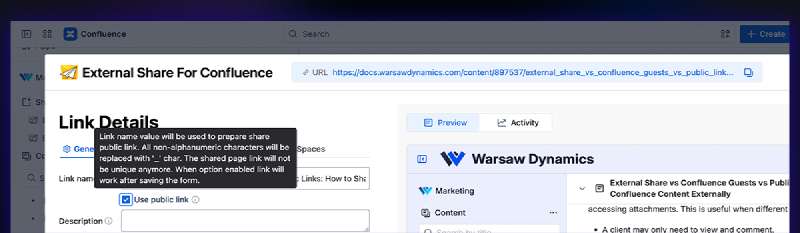
Another major advantage of using External Share for Confluence is the ability to create custom links. Specifically, you can make all links – to pages, page trees, and entire spaces – point to your website by configuring a custom domain. You can also fully customize each link by removing the default random code and changing the URL to something more relevant and memorable.
This means you can create an entire knowledge base, fully branded for your company, with External Share, ensuring continuity of service for customers and partners.
Security features
Which security model matches the collaboration you are trying to support?
| Confluence Guests | Public Links | External Share |
|---|---|---|
| Guests use Atlassian’s user and access model. They are named users who log in, and their access is managed through Confluence administration and space permissions. But if the assigned space contains content they should not see, you need restrictions or a dedicated Guest space created for sharing. | Public Links are convenient, but broad. Anyone with the public link can view the content, and Public Links override internal view restrictions. This makes Public Links only suitable for content that is safe to expose to anyone. | External Share gives teams link-level external sharing controls. You can share only the content you choose, configure access settings, set passwords and expiration dates, restrict access, control attachments, and prevent external users from accessing the workspace. |
Confluence Guests, Public Links, and External Share for Confluence all have value.
The right choice depends on the relationship between the external user and your Confluence workspace.
Curious whether External Share for Confluence is the right tool for you? Try it free for 30 days.