



External Share for Confluence versus Atlassian's Guest Users Feature
Atlassian recently announced their Confluence guest users feature and people have since been asking us: what’s the difference between the built-in feature and our app, External Share for Confluence ? Before we go into detail, here’s a handy comparison table, showing the differences in a nutshell. Now, let’s dive into the details… What is Atlassian’s Confluence guest users feature? With this new feature, you can have 5 free guest users per licensed user added to a specific space in your Confluence instance.

Permission flexibility!?
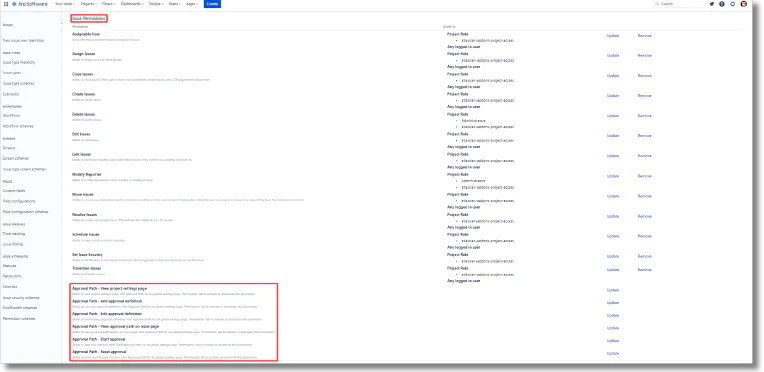
We have a new and rather EXITING update!!! (on both Jira and Confluence) We’ve been working around the concept of approval path for quite some time, if you are a user of Approval Path, you probably work in an environment where permission hierarchies play a role, hence the need of approvals! So, what’s the update and how can it improve your experience!?! Permission schemes That’s right!!! You can now limit or extend the access of users to approval path capabilities, you can create more flexibility around the approval path by allowing more users to interact with the path or you may wish to limit access restrictions further to have a more focused group of users handle the approvals.
Add Signatures to Jira Issues with the New E-Signature App
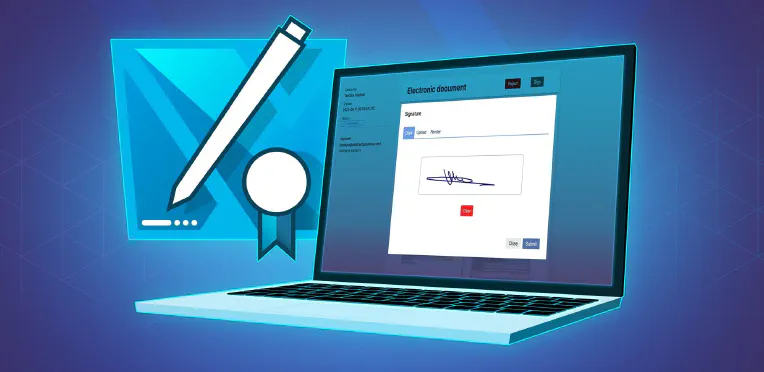
Jira issues just got a LOT more exciting. These already awesome little tools for assigning and tracking work can now be transformed into quick legal contracts in a few clicks. Warsaw Dynamics’ newest app, Contract Signatures for Jira , makes it possible for internal and external users to add their signature to a Jira issue and formalize their agreement to the work described in it. And yes, you heard right.
Approval path with external user participation
Usually, an approval process takes place within the organisation. However, in some cases, a decision from someone outside your Jira or Confluence is needed. There is no point in adding this user to your instance when there is an easier and faster solution provided by the Approval Path apps, which is the email step. All you need is a decisive person’s email address, on which will be sent a call for action message.
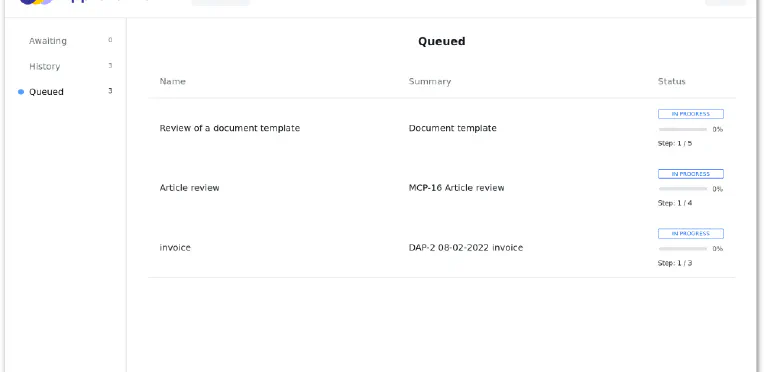
Big update pack
We are constantly developing our apps to make them more useful. Lately, we added some improvements to the Approval Path for Jira and the Approval Path for Confluence. Let’s walk through some of them. Parallel group In response to customer requests, we added the parallel group to both the Approval Path for Jira and the Approval Path for Confluence. It allows all users added to the group to approve or reject parallelly.
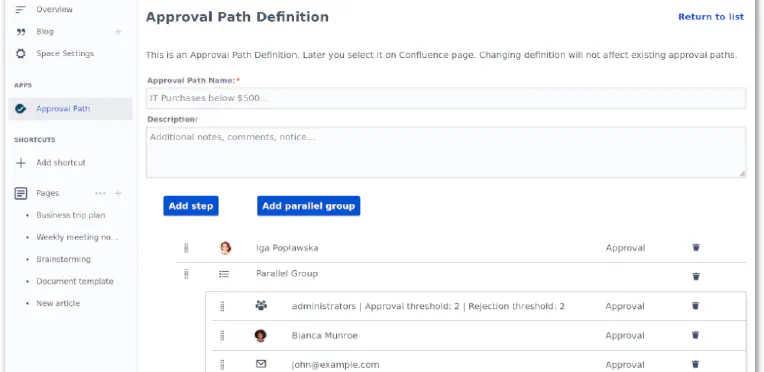
Custom Domains for Confluence and Jira: The Ultimate Workaround to End Your CLOUD-6999 Woes
The Atlassian Community has been hankering after custom domains for Confluence and Jira for absolute yonks. It’s difficult to offer continuity of service – not to mention disorienting for the customer – when you’re directing them to a website that’s not your company’s in order to view your resources and documentation. You’ve probably heard of the famous CLOUD-6999 Jira ticket . Behind it lies a tale of woe and despair.
Achieving a Single Source of Truth in your Organization
Single source of truth (SSOT) is a concept used to ensure that everyone in an organization makes decisions based on the same data. In document management terms, it’s about centralizing all relevant and up-to-date documents about your company and projects so that they’re accessible from one place. Why is it important? Because if your teams are storing important documents in personal inboxes or saving them to desktops and folders that no one else can access, they’re effectively hiding information from the rest of the team.

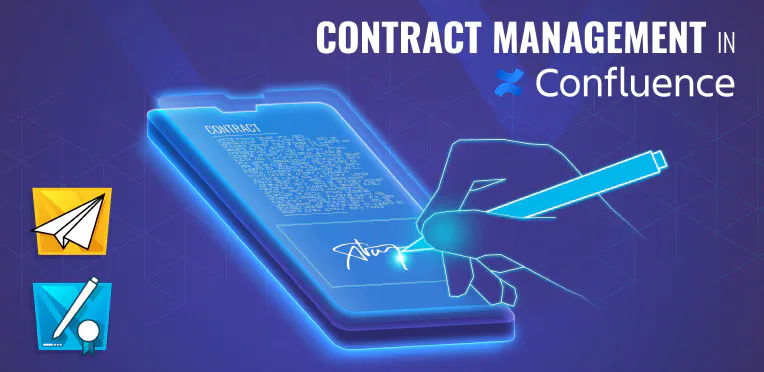
How to Make, Manage, and Sign Contracts in Confluence
Lots of the organizations we encounter are using Microsoft Word, Google, Adobe, SharePoint, and various other tools to create, collaborate on, and store their agreements. Many of these tools don’t integrate with each other, putting teams and their data into silos. Silos that breed delays and replication in the contract management process. With so many more people now working remotely, silos are becoming harder to maintain. Increasing numbers of organizations are looking to centralize their data and achieve a single source of truth in order to alleviate the confusion and poor data quality that comes from having distributed teams spread across time zones, all working off different information.
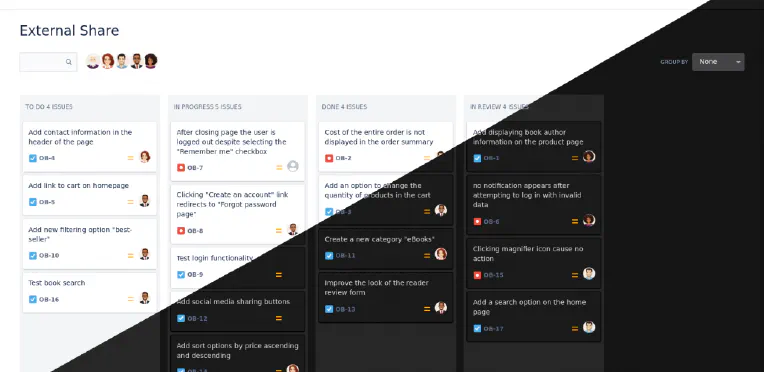
With Automation, Dark Mode, Custom Domains & More, External Share is Basically A New App
Our team have added so many new features and improvements to External Share for Jira and Confluence over the past few months that what customers are getting now is effectively a brand new app. Let’s walk through some of the additions. Automated Share Management We would all rather be doing things that are valuable. Things that make us money. Admin tasks don’t make us money. They make us bored.
Digitally Sign Contracts in Confluence with Warsaw Dynamics' Brand New App
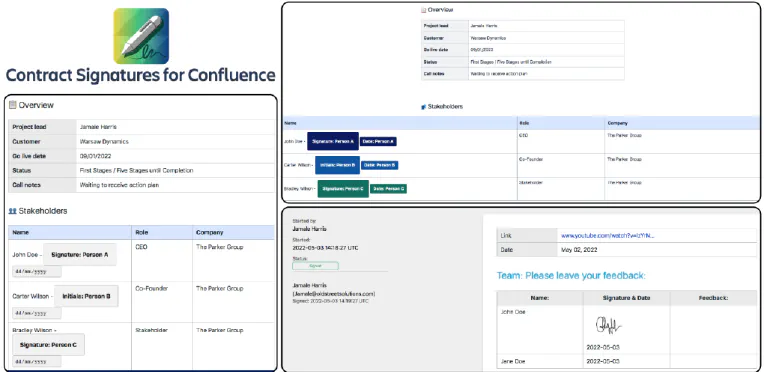
Confluence is already an ideal place to be creating, managing, and storing your contracts . Of course, the most important feature of any contract is the signatures of the parties. It’s not an agreement till someone agrees to it. And yet, there’s no way of digitally signing contracts inside Confluence. You’d need to export it and use another digital signature tool like DocuSign, taking the process and the audit trail outside of the platform you’re working in.